
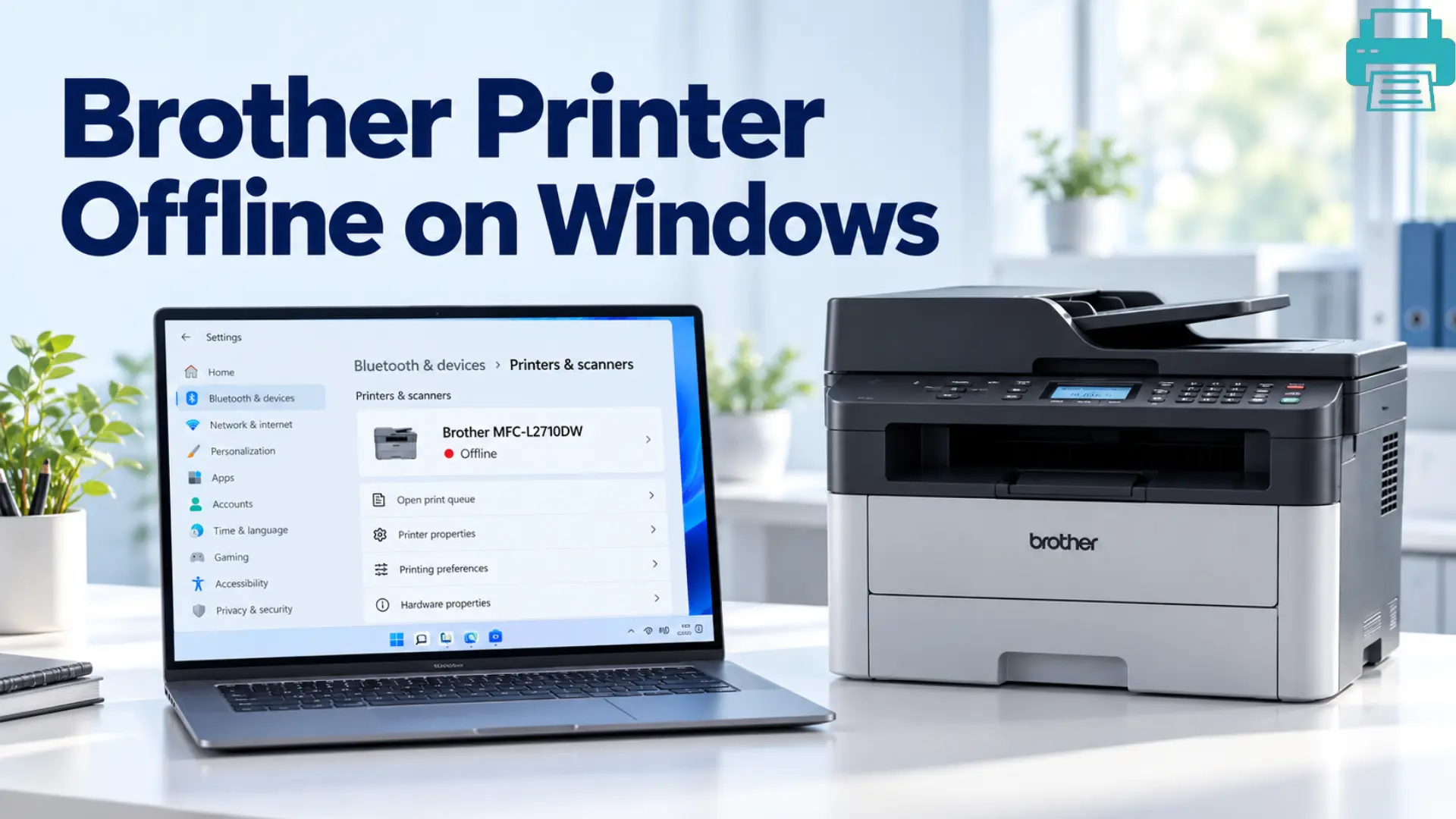
How to fix Brother Printer Offline on Windows: Easy Guide
 Last updated on
Seeing a Brother printer as Offline on Windows when you want to print something can be very frustrating. Your printer may be connected to WiFi, but Windows still does not send the document for printing. But this does not mean that your Brother printer has a hardware problem. An incorrect offline settings, a stuck print queue, an old driver, or an old IP address can easily cause this problem. These problems can be easily fixed if you do some basic checks and troubleshooting steps below.
Remember to follow all the solutions in a proper order. After performing each step on your printer, do a test print of a small document. After you test print, if your Brother printer starts working, you don’t need to move on to the next fix.
Reasons Why You May See Your Brother Printer Offline on Windows
- Windows can show your Brother printer offline for several reasons:
- The printer offline mode is enabled.
- Your printer is not set as the default printer.
- The print spooler service is jammed.
- Windows has connected to the incorrect printer port.
- SNMP status can be causing an incorrect offline message.
- The printer driver is damaged or old.
- A network change is blocking the communication.
Before changing any printer settings, try to check the printer itself. Make sure it has proper power, paper, and no error messages.
Troubleshooting Steps For Brother Printer Offline on Windows
Step 1: Uncheck “Use Printer Offline”
Windows can sometimes force a printer to go into offline mode when it goes to sleep or is not used for some time. This is one of the first steps you should check.
- Navigate to Settings > Bluetooth & devices > Printers & scanners.
- Look for your Brother printer.
- Open the printer queue and go to the Printer menu.
- If Use Printer Offline has a checkmark, select it to turn it off.
- If the option is in gray color and, close the Window.
- Right-click your printer again, and press Run as administrator.
- Check all the settings again and turn off the printer offline mode.
- Do a new print job.
Step 2: Make your Brother Printer the Default
Windows may send your printing document to another printer instead of your Brother printer. This usually happens after using a PDF printer or another device.
- Open Settings > Bluetooth & devices > Printers & scanners.
- Look for your Brother printer.
- Click on it and make it the default printer.
- Open your document and choose the Brother printer before printing.
- Send a test document for confirmation.
Step 3: Reboot the Print Spooler Service
The Print Spooler helps to manage all the documents that are waiting in the queue for printing. When it becomes stuck, Windows may stop sending jobs correctly.
- Press Windows + R.
- Type services.msc and click Enter.
- Search for Print Spooler.
- Select it and click Restart.
- Visit your Brother printer queue.
- Cancel all the old documents that are stuck.
- Do a fresh print job.
Step 4: Check the Printer Port and IP Address
If your Brother printer connects through Wi-Fi, Windows should use the network address to connect with it. If that address changes, Windows will continue looking for the printer at its previous location.
- Select your Brother printer and go to Printer properties.
- Search for the Ports tab.
- Look for the port that has the printer’s IP address.
- Open the network information on your Brother printer.
- Compare the current IP address with the address shown in Windows.
- If Windows lists an old address, try to update the printer port or reconnect the Brother printer.
- Click on Configure Port if available.
- Check whether SNMP Status Enabled is selected or not.
- If your printer keeps showing offline, clear SNMP Status Enabled and apply all the changes.
- Lastly, print a test page.
Step 5: Reinstall the Full Brother Driver Packages
If all the above fixes do not solve your problem, then the reason is that your printer driver may be outdated, damaged, or incorrectly installed.
- Search for your exact Brother printer model.
- Open the official Brother website.
- Download the Full Driver & Software Package for your Brother printer.
- Go to Settings > Apps and look for the existing Brother printer software.
- Uninstall the current Brother software and quickly restart your computer.
- Open the downloaded driver package.
- Follow all the setup instructions you see on your screen.
- Select Printers & scanners and confirm that your Brother printer is visible.
- Send a test print.
Quick Network Checks You Must Try
If the printer is wireless, a network mismatch can look exactly like an offline printer. Windows may be connected to one network while the Brother machine is connected to another. This is especially possible after changing a router or Wi-Fi password.
- Look for the Wi-Fi name shown on the computer.
- Check the network name s on the Brother printer.
- Both devices should use the same network.
- Place the printer closer to the router if its connection is weak.
- Restart the printer after reconnecting it to Wi-Fi.
- Do a test print before changing other settings.
- If the printer disconnects continuously, check the router settings for the printer’s connection.
- Check the network when the problem continues.
Final Check
An offline Brother printer is often dealing with many connection or communication problems rather than a hardware failure. Try starting with the offline mode and the default printer. Then restart the Print Spooler, verify the IP address, or reinstall the driver.
FAQs
Q1: Why does my Brother printer keep going offline?
Ans: Your Brother printer goes offline because a changing IP address, stuck Print Spooler, offline setting, network problem, or driver issue is interrupting the printing.
Q2: What should I check first?
Ans: Start by checking the Use Printer Offline mode. Then, confirm your Brother printer is the default printer and restart the Print Spooler.
Q3: Can an IP address cause the offline message?
Ans: Yes, A changed IP address can make Windows connect to the printer’s old address instead of your current printer.
Q4: When should I reinstall the Brother driver?
Ans: Try to reinstall it after checking the main printer and network settings. A fresh driver can fix damaged or outdated software.