
Fix Epson Printer Offline on Windows 11 With These Steps
 Last updated on
Your Epson printer is powered on, but Windows 11 shows an offline message when you try to print. This can be very confusing for Windows users, especially when your printer is connected to Wi-Fi and does not show any error.
In many cases, your printer is not broken. Windows can be in an offline setting, have a stuck print queue, an incorrect default printer, or an old network connection. A printer can also go offline when Windows has trouble connecting to its network port or driver.
You need to work through all the fixes below in order and do a test print after each one. Once your Epson printer starts printing normally, you can stop doing the steps.
Reasons Why an Epson Printer Goes Offline on Windows 11?
An Epson printer may appear offline on Windows 11 for these common reasons:
- Use Printer Offline is enabled.
- A previous print job is stuck somewhere in the print queue.
- Windows has selected another printer as the default printer.
- The Print Spooler service is temporarily stuck and needs a restart.
- Your printer is using a different network port.
- The Epson driver is old and damaged.
- Windows has saved the old printer connection.
- The printer needs to be removed and added again.
Before changing any settings, make sure that your Epson printer is powered on and ready. Re-check the printer screen for paper jams, low ink warnings, open covers, or other errors. If you can use Wi-Fi, confirm that your computer and Epson printer are connected to the same network.
Fixes for Epson Printer That’s Offline on Windows 11
Fix 1: Power off “Use Printer Offline”
Windows can sometimes switch your Epson printer to offline mode even when your Epson printer is available. Check the setting below first.
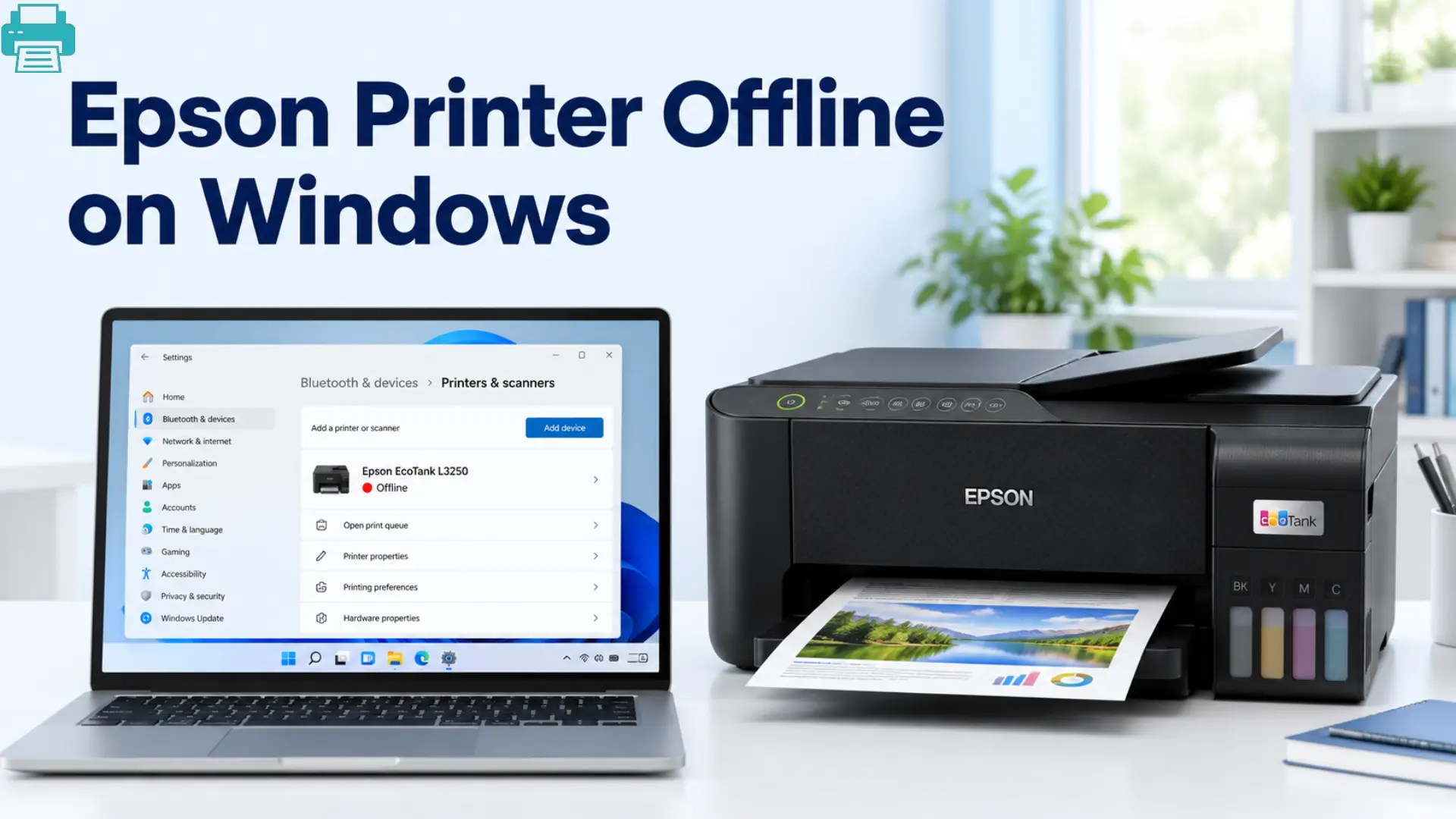
- Go to Settings > Bluetooth & devices > Printers & scanners.
- Choose your Epson printer.
- Select Open print queue.
- Look for the Printer menu.
- Make sure that Use Printer Offline is not checked.
If the option is selected, turn off offline mode. Then, send a small test document to your Epson printer.
Fix 2: Remove the Print Queue
A stuck print job can keep your document behind it from printing. This is a common reason an otherwise working Epson printer can be offline.
- Click on the Epson printer queue again.
- From the Printer menu, select Cancel All Documents.
- Remove anything that remains stuck in the queue, especially a document that shows Error, Deleting, or Printing for a long time.
- Once the print queue is empty, try waiting for a few seconds and doing the print again
- If your new document prints normally, the older job was causing the problem.
Fix 3: Set your Epson as the Default Printer
Windows can send your print document to another printer, a disconnected Epson printer, or a virtual printer.
- Setting your Epson as the default printer as it can prevent this confusion.
- Go to Settings > Bluetooth & devices > Printers & scanners.
- Turn on the option “Let Windows manage my default printer”.
- Choose your Epson printer and click on it as Set as the default.
Now open your document and check which printer you have selected before clicking Print. Make sure that your Epson model is selected.
Fix 4: Reboot the Print Spooler
The Print Spooler is a Windows service that handles print jobs. If printing becomes stuck, your Epson printer may stop responding when everything else appears normal to you.
- Press the Windows key + R.
- Type services.msc and click Enter.
- Search for the Print Spooler in the list.
- Right-click it and select Restart.
Wait for a few seconds, reopen the printer queue, and try printing again. This step can refresh the Windows printing process without requiring you to remove the printer.
Fix 5: Look for the Correct Printer Port
If the Epson printer repeatedly goes offline, the chosen printer port can be responsible. A network printer can sometimes use a connection that does not remain very reliable.
- Search for Windows for Printers & scanners.
- Choose your Epson printer.
- Click on Printer properties > Ports.
- Select the selected port.
If the checked port starts with WSD and the Epson printer repeatedly disappears or goes offline, that port may be contributing to the problem. A more stable port configuration can help.
Before changing any port manually, try checking your Epson’s instructions for the exact printer model and network setup. Wrong port changes can stop Windows from connecting to the printer.
Fix 6: Update or Install the Epson Driver
An outdated or damaged printer driver can prevent Windows 11 from connecting to your Epson printer. This can easily happen after a Windows update or other software changes.
- Visit Epson’s official site.
- Enter the exact printer model.
- Download the current driver packages for Windows 11.
- Install the software and follow the on-screen instructions shown on the screen.
- After the installation, restart the computer and printer.
If Windows no longer shows your Epson printer, re-add it again through Printers & scanners and test a print.
What If the Epson Printer Keeps Going Offline?
If your Epson printer repeatedly goes offline after you bring it back online, the issue can be the network connection, not your printer.
- Restart the printer and router.
- Check that your computer and printer are using the same Wi-Fi network.
- If your printer’s IP address changes, Windows can continue to connect to an older address.
- Confirm whether your computer is connected to a guest Wi-Fi network or not.
Some guest networks stop connected devices from communicating with one another. This can prevent Windows 11 from finding your printer even when both the devices have internet access.
For Troubleshooting Guide: Printer Prints Article
Final Thoughts
An Epson printer can show offline on Windows 11 even when it is connected. Start with the queue, offline settings, and Print Spooler, then re-check the driver or printer connection if needed. In many cases, one small setting can be enough to get printing back to normal.
FAQs
Q1: Why does my Epson printer say offline when it is connected?
Ans: Windows 11 may be using an old connection, a stuck print job, or incorrect printer settings. Try to check the queue and printer status.
Q2: How do I quickly bring my Epson printer online?
Ans: Turn off Use Printer Offline, clear pending jobs, and restart the Print Spooler. Then do a test print.
Q3: Why does my Epson printer keep switching to offline?
Ans: A changing Wi-Fi connection or unstable printer port can cause repeated offline messages. Try to check the printer’s network connection and port settings.
Q4: Will removing the Epson printer fix the offline problem?
Ans: It can help when Windows has saved an outdated printer connection. Remove the printer and re-add it again to create a fresh connection.