
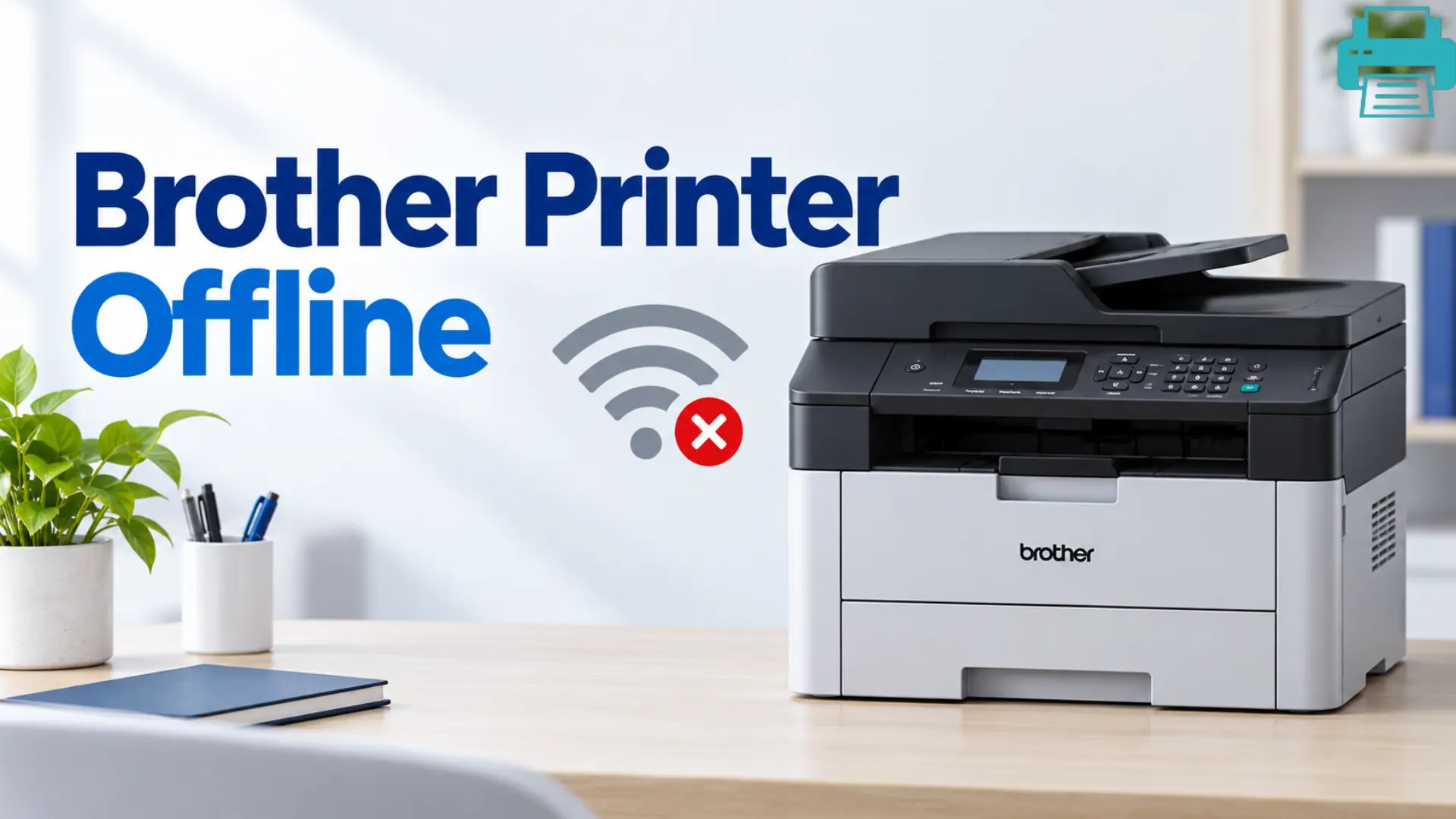
How to Fix Brother Printer Offline In Minutes?
 Last updated on
Whenever you see a Brother Printer offline, don’t panic, because nine times out of ten, an offline Brother printer isn’t actually broken. It may be unable to communicate with your computer because of a network, driver, or printer setting issue.
Most often, the problem can be because your computer cannot connect with your printer. If your Brother printer keeps showing offline in Windows 10 or Windows 11, follow these troubleshooting steps to identify the cause and get your printer back online.
Common Causes Why your Brother Printer Goes Offline
Before you start any fixes, it helps to know what is actually causing the offline message.
The most common causes you may ignore are:
- A stuck or crashed print spooler: One stuck print job can make Windows think the whole printer has disappeared.
- Mismatch of IP address:If your Brother printer gets an IP from your router, that address can change after a restart, while your computer keeps trying to reach the old one.
- Use Printer Offline mode is on:This is a Windows setting that can occur automatically when your computer remains in sleep mode.
- An outdated or corrupted driver can easily cause the error in the printer after a Windows update.
- A weak Wi-Fi connection: Several Brother models only support 2.4 GHz networks, so if your router auto-switches to 5 GHz, the printer will experience network drops slowly.
- Firewall or antivirus software blocks the connection between your computer and a networked printer.
- A physical issuestopping the queue, like an open cover, a paper jam, or the printer being asleep or powered off.
Once you identify the cause, try the following fixes in order and start with the simplest solutions below.
Best Fixes You Need To Try Right Now
Fix 1: Clear the Stuck Print Spooler
- Go to Settings and search for Bluetooth & devices
- Click on Printers & scanners, right-click on your Brother printer, and open the print queue.
- Cancel any stuck or pending print jobs.
- If the queue does not clear, restart the Print Spooler service from Windows Services.
- Try printing again when the print queue is empty.
Why this will help: Clearing stuck print jobs can easily restore the communication between Windows and your Brother printer without reinstalling any printer driver.
Fix 2: Reconnect Your Brother Printer After IP Address Changes
- Restart your router and wait until your Wi-Fi connection is restored again
- Confirm the printer’s network settings and look for its current IP address.
- If your printer’s IP address has changed, use Brother’s Network Connection Repair Tool if it is available for your model.
- Follow the on-screen instructions.
- Print a test page to confirm the connection with the printer.
If the IP address keeps changing, consider reserving an IP address for your printer in your router’s settings. This can easily help to prevent recurring connection problems.
Fix 3: Turn Off the Use Printer Offline Mode
- Navigate to Settings > Bluetooth & devices > Printers & scanners.
- Choose your Brother printer from the list and open the print queue.
- Select the Printer in the top menu.
- In Windows 10, open the printer queue.
- Check the Printer menu for Use Printer Offline.
- In Windows 11, check the printer status.
- Clear stuck jobs and follow the instructions for your specific printer model if the offline option is unavailable.
- Submit a new print job and check whether the printer is online or not.
If you cannot find these options, the menu can differ depending on your Windows version. Check your printer status and connections before moving to the next fix.
Fix 4: Update the Latest Printer Driver
- Go to Settings > Bluetooth & devices.
- If the previous fixes do not work, remove the existing printer only if necessary.
- Download the compatible driver or Full Driver & Software Package for your model from the official Brother website.
- Reinstall it and follow the on-screen instructions.
- Restart Windows and try printing something again.
Important: Choose the correct printer model and Windows version before downloading the driver. Avoid downloading the printer drivers from unknown third-party websites.
Fix 5: Reconnect Your Brother Printer to a Stable WiFi Network
- Reboot your router and wait for the Wi-Fi connection to be fully restored.
- On the Brother printer, click on Wi-Fi or Network Setup.
- Select the home Wi-Fi network and type the correct password carefully.
- Make sure that both the printer and computer are connected to the same Wi-Fi network.
- If your Brother model supports only 2.4 GHz Wi-Fi, try to connect it to the 2.4 GHz network rather than a 5 GHz-only network.
- Do a test print to confirm whether the connection remains stable.
If your Brother printer uses a USB connection instead of Wi-Fi, check whether the cable is securely connected to both devices or not. Try another USB port or cable if the printer still appears offline.
Fix 6: Review Firewall or Antivirus Settings
- Check your firewall or antivirus settings to see whether they are blocking printer communication.
- Avoid disabling security protection entirely.
- Allow only the trusted printer software and network traffic needed for printing.
- Restart your computer and printer after changing the settings.
- Try printing a test page.
For advanced security, do not leave your firewall or antivirus disabled. Adjust the required permissions instead, and only allow trusted printer software through your security settings.
Final Thoughts
A Brother Printer Offline error is often caused by a stuck print queue, an old IP address, an unstable Wi-Fi issue, or a change in Windows settings rather than a faulty Brother printer. Try clearing the print queue, unchecking Use Printer Offline mode, reconnecting to Wi-Fi, and updating the printer driver. If it still stays offline, you need to check your firewall settings before trying any other complicated steps.
If your Brother printer keeps going offline after trying all these fixes, check the printer’s displayed error messages and consult the official Brother website for any model-specific troubleshooting instructions.
Q1: Does Brother Printer Offline Mean My Brother Printer is Broken?
Ans:No, offline is a communication status, not a warning for a broken printer. It usually means your computer can’t connect to the printer because of a network, driver, or settings issue.
Q2: Can a USB-connected Brother Printer Show an Offline Message?
Ans: It is less common, but yes. A loose or damaged USB cable, a stuck print spooler, or Use Printer Offline mode activated can trigger the same message without involving any network. You need to try a different USB port or cable first.
Q3: Why Does My Brother Printer Keep Going Offline Even After I Just Fixed It?
Ans:Seeing the Brother printer offline even after fixing it may be due to a dynamic IP address that keeps changing. If your printer gets a new address every time your router restarts, Windows or macOS will still be using the old IP. Reserving an IP address in your router’s settings may help prevent this recurring issue.
Q4: Why Do I Receive an Offline Message Right After a Windows Update?
Ans:You may receive an offline message after an update because Windows updates may have reset print driver settings or reinstall a generic driver over your newly installed Brother-specific one. Reinstalling the Full Driver & Software Package from Brother’s site after any major Windows update may help resolve the issue easily.
Q5: How do I get my Brother Printer Back Online in Windows 11?
Ans:Open Settings > Bluetooth & devices > Printers & scanners, select your Brother printer, and open its print queue. Clear all the stuck jobs and check whether offline mode is enabled. If the problem continues, verify the connection and update the printer driver.
Q6: Why is My Brother Printer Connected to Wi-Fi but Still Showing Offline?
Ans:Your printer and computer may be connected to different networks, or the printer’s IP address may have changed. Confirm that both devices use the same local network, check the printer’s IP address, and follow Brother’s network troubleshooting instructions if needed.
For Troubleshooting Guide: Printer Prints Article