
Want to Fix an HP Printer That’s Offline on Windows? Try These Solutions
 Last updated on
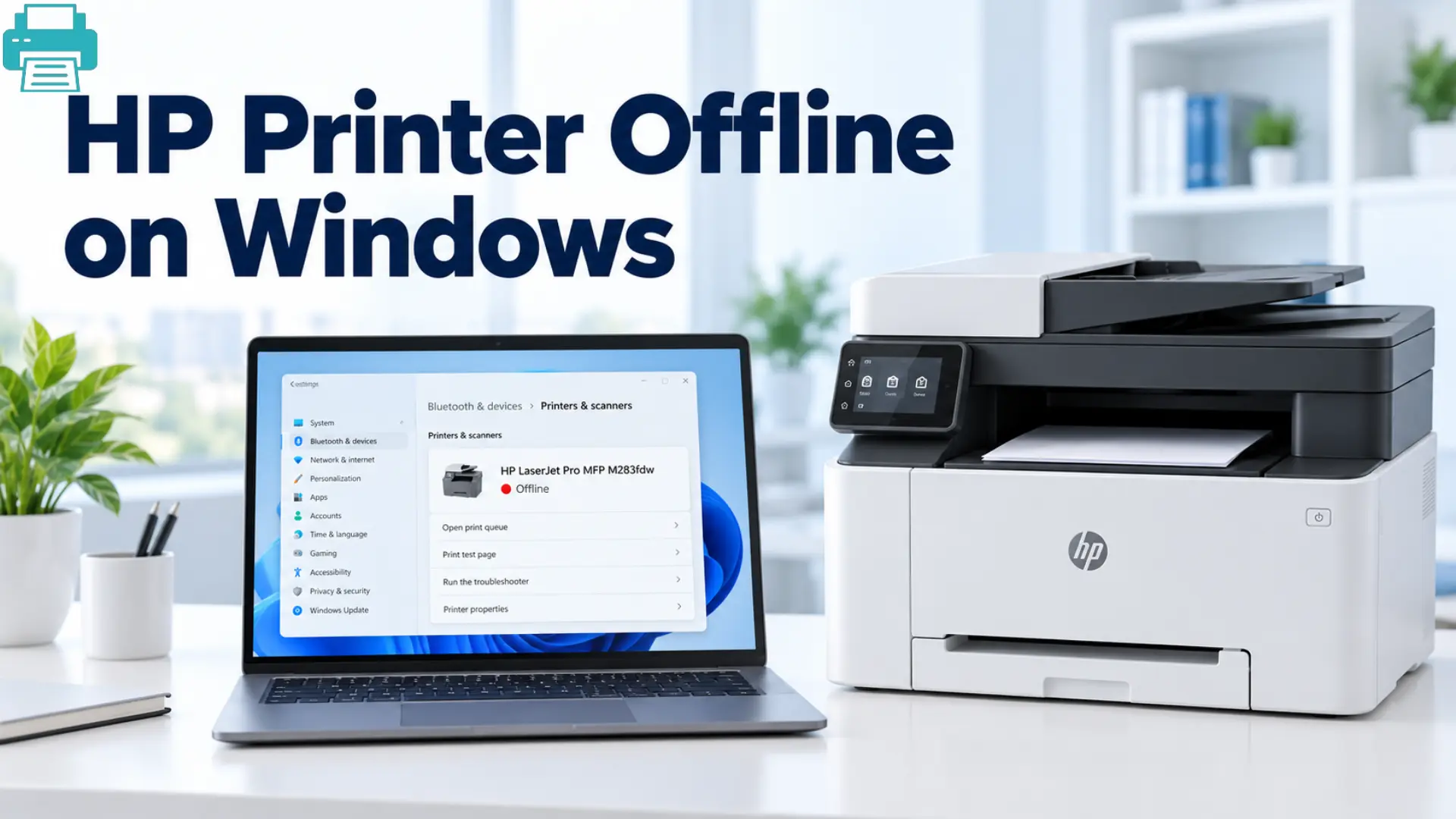
Your HP printer is switched on, but you can see an offline message on Windows whenever you try to print anything… Your HP printer has failed to connect with other devices due to a network issue, a stuck print job, wrong network settings, or old printer drivers.
The good news for you is that you can easily fix your HP printer with the non-complicated steps elaborated below. First, do some basic checks and try a test print after each fix.
Why is My HP Printer Offline on Windows?
An HP printer shows offline on Windows for the following reasons:
- The printer and the computer are on different WiFi networks.
- The printer has lost its wireless connection.
- Windows is in “Use Printer Offline” mode.
- A printer printing job is still stuck.
- Windows is still connected to the old printer connection.
- The HP printer driver is old or damaged.
- The printer or router needs a restart.
Before troubleshooting, you need to check the printer display for any paper jams, empty ink, open covers, or other errors. If you use Wi-Fi, you have to make sure that your HP printer and Windows computer are connected to the same network.
Ways to Fix an HP Printer that’s Offline on Windows
Fix 1: Restart the HP printer and verify the Wi-Fi network
A simple restart can clear any temporary communication problem between Windows, the router, and the printer.
- Power off your HP printer
- Wait about 10 seconds.
- Power it back on and let it start.
- Verify that your Windows computer is connected to the correct Wi-Fi network.
- HP printer should be connected to the same network.
- If your router has separate 2.4 GHz and 5 GHz networks, check which network the printer is currently using.
- Try printing from your printer again.
Fix 2: Disable Use Printer Offline mode temporarily
Windows can sometimes automatically keep your printer in offline mode even when it is ready to print.
- Go to Settings on Windows.
- Look for Bluetooth & devices > Printers & scanners.
- Pick your HP printer.
- Click on the printer queue.
- Search through the Printer menu if it appears.
- Disable the Use Printer Offline mode if selected.
- If your HP printer is paused, try to resume it.
- Send a new print job to your printer.
Fix 3: Remove all stuck print jobs junk
A frozen or stuck print job can stop new documents from connecting to your HP printer for printing. You have to clear the queue as a simple fix worth trying.
- Open Settings > Bluetooth & devices > Printers & scanners.
- Search for your HP printer and look for the printer queue.
- Select the documents that are stuck or waiting.
- Cancel all the old print jobs.
- Close the queue and wait a few seconds.
- Do a print test for confirmation.
Cancel all the waiting documents before testing. One stuck print job can stop the whole printing queue.
Fix 4: Remove and re-add your HP printer again
Windows may be trying to use an old printer connection for new printing commands. Removing the old printer and re-adding the new one gives it a fresh connection.
- Go to Settings > Bluetooth & devices > Printers & scanners.
- Choose your HP printer.
- Right-click to Remove and confirm.
- Return to the Printers & scanners menu.
- Click Add device.
- Now, wait for Windows to search for your HP printer.
- Select it and complete the printer setup.
- Try a print test page.
This is a very useful step after you change your router, network name, or printer connection.
Fix 5: Keep the HP printer driver up to date
An outdated or damaged driver can stop Windows from communicating correctly with your printer.
- Find your exact HP printer model.
- Navigate to HP’s official website.
- Search for the latest printer driver or software for your Windows version.
- Download and install the recommended available printer software.
- Follow all the on-screen instructions.
- Reboot the computer and printer.
- Do the test print again.
Only use the available software that is made for your specific HP printer model.
Fix 6: Power cycle the Print Spooler service
Windows needs the Print Spooler service to manage your print jobs. If your print job gets stuck, then your HP printer will remain offline or fail to accept any documents.
- Press the Windows + R keys.
- Type services.msc and click Enter.
- Search for the Print Spooler in the list.
- Click on it and select Restart.
- Wait for a few seconds.
- Run the print test again.
Fix 7: Reboot your router
If your HP printer uses any Wi-Fi connection, the problem can be with the network rather than the HP printer.
- Turn off your router.
- Wait for about 30 seconds.
- Power it back on.
- Wait for the Wi-Fi connection to return.
- Verify that the computer and HP printer are using the same WiFi connection.
- Try printing again.
These basic checks will help you bring your stuck printer back online.
Final Thoughts
An HP printer offline on Windows does not always mean that your printer cannot be fixed because it is damaged. A Wi-Fi problem, offline settings, a stuck print queue, an old printer connection, or outdated drivers can give you the same message.
For a simple and quick fix: restart your printer, check the network, turn off printer offline mode, and clear the print queue. If needed, try to remove and re-add the printer again or update its printer drivers.
For Troubleshooting Guide: Printer Prints Article
FAQs
Q1: Why is my HP Printer Offline on Windows?
Ans:Your HP printer may be offline because Windows cannot connect to it correctly. Some common causes are different Wi-Fi networks, a stuck queue, offline mode, or an old printer driver.
Q2: How can I get my HP Printer Back Online on Windows?
Ans:Restart your printer, verify that your computer and printer are on the same Wi-Fi network, and make sure to uncheck Use Printer Offline. You can also clear stuck print jobs.
Q3: Why is my HP Printer connected to Wi-Fi but still offline?
Ans:The HP printer can be connected to Wi-Fi while Windows is still using an old printer connection. Try removing the HP printer and re-adding it again to create a fresh connection.
Q4: Do I need to reinstall my HP Printer Driver?
Ans: Not always; try restarting, checking Wi-Fi, clearing the queue, and re-adding your HP printer first. If your problem continues, try updating or reinstalling the correct HP driver.