
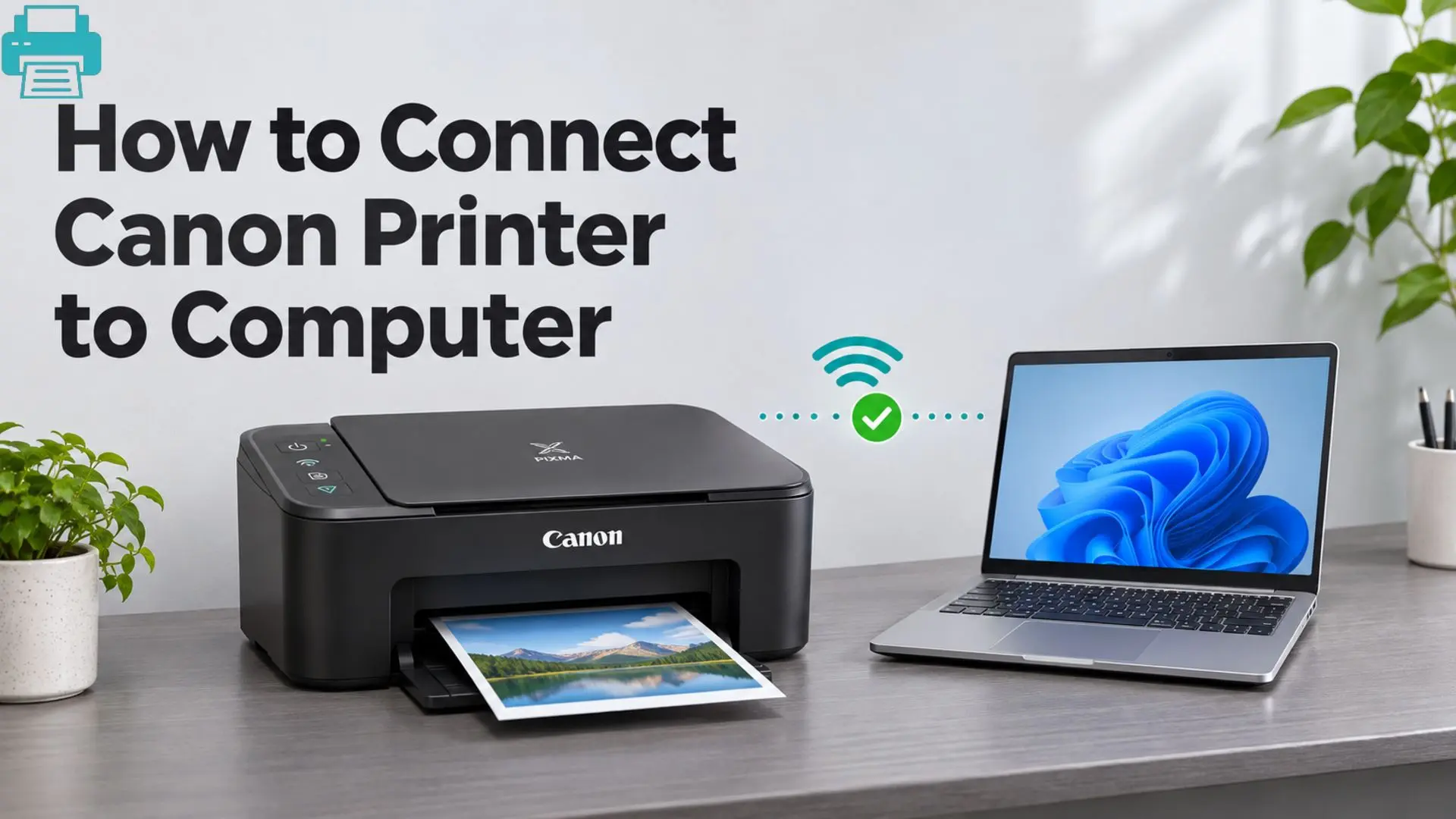
How to Connect Canon Printer to Computer
 Last updated on
Before Connecting Your Canon Printer
Get these things ready before doing the printer setup:
- Your Canon printer and its power cable.
- A Windows PC or Mac with an internet connection.
- A USB printer cable if you prefer a wired connection.
- Your Wi-Fi network name and password for wireless setup.
- Your printer’s exact model number.
Make sure the printer is switched on and has completed its initial setup. If it is a wireless model, keep it reasonably close to your router during setup.
Methods to Connect Your Canon Printer to Computer
Method 1: Connect Canon Printer to Computer Using USB
A USB connection is a convenient option if you want a direct connection without configuring Wi-Fi.
- Turn on your Canon printer.
- Connect one end of the USB cable to the printer and the other end to an available computer port.
- Wait for Windows or macOS to detect the printer.
- Follow any on-screen installation instructions.
- Open your computer’s printer settings and check whether the Canon printer appears.
- Select it and print a test page.
On Windows 11: Open Settings > Bluetooth & devices > Printers & scanners. If the printer does not appear, select Add device.
On Windows 10: Open Settings > Devices > Printers & scanners and select Add a printer or scanner.
On Mac: Open the Apple menu > System Settings > Printers & Scanners. Select Add Printer, Scanner, or Fax, then choose your Canon printer.
If the printer is not detected, try another USB port or cable. Some models require specific Canon software before all printing and scanning features become available.
Method 2: Connect Canon Printer to Computer Using Wi-Fi
Wireless printing lets you print from your computer without keeping a USB cable connected.
Step 1: Connect Your Canon Printer to Wi-Fi
- Turn on your Canon printer.
- Open its wireless LAN or Wi-Fi settings from the control panel.
- Select your Wi-Fi network.
- Enter your network password.
- Follow the printer’s instructions to complete the wireless connection.
Some Canon printers offer a WPS connection option, while others use an on-screen setup process or Canon’s setup software. The available method depends on your model.
Step 2: Add the Wireless Printer to Windows
Once the printer is connected to Wi-Fi:
- Make sure your computer uses the same intended network.
- Open Settings > Bluetooth & devices > Printers & scanners on Windows 11.
- Select Add device.
- Wait for Windows to find your Canon printer.
- Select the printer and follow the installation instructions.
For Windows 10, open Settings > Devices > Printers & scanners, choose Add a printer or scanner, and select your Canon printer when it appears.
Step 3: Add the Canon Printer to Mac
- Open the Apple menu > System Settings.
- Select Printers & Scanners.
- Click Add Printer, Scanner, or Fax.
- Wait for your Canon printer to appear.
- Select it and follow the on-screen instructions.
Your Mac should add the printer if it is discoverable on the network and compatible with your macOS version.
Method 3: Download and Install Canon Printer Drivers
If your computer does not recognise the printer or some features are missing, you may need the correct Canon printer driver.
- Identify your printer’s exact model number.
- Visit Canon’s official website at ij.start.canon or its regional Canon website.
- Enter your printer model in the setup or download section.
- Select your operating system.
- Download the recommended setup software or driver.
- Open the downloaded file and follow the installation instructions.
- Choose software that matches your computer’s operating system.
- Avoid downloading printer drivers from unfamiliar third-party websites.
Important: Some newer Windows computers can install compatible printers automatically. If your computer uses an ARM-based processor, follow Microsoft’s device-addition instructions and any model-specific Canon guidance rather than assuming every manufacturer installer will work.
How to Test Your Canon Printer Connection?
After completing the setup, print a test page to confirm that everything works.
- On Windows, open Printers & scanners, select your Canon printer, and open its printer properties or queue to find the available test options.
- On Mac, select your printer under Printers & Scanners and check its status before printing a document.
If the page prints correctly, your Canon printer is connected to the computer.
Common Problems When Connecting a Canon Printer
- Canon printer not detected: Check the USB cable, Wi-Fi connection, and printer power. Restart both devices and try adding the printer again.
- Canon printer not connecting to Wi-Fi: Confirm the network name and password. Make sure the printer and computer are connected to the intended network.
- Canon printer driver unavailable: Download the correct software for your exact model and operating system from Canon’s official website.
- Canon printer showing offline: Check the printer queue, confirm the connection, and make sure Windows has not selected offline mode.
Conclusion
Connecting a Canon printer to a computer is usually easy once you choose between USB and wireless setup. Add the printer through Windows or Mac settings, install the correct Canon driver if required, and print a test page to verify the connection. If automatic detection fails, follow the setup instructions for your exact Canon model rather than repeating the same installation steps.
Frequently Asked Questions
Q1: How do I connect my Canon printer to my laptop?
Ans: You can connect it using a USB cable or Wi-Fi. For USB, plug in the cable and add the printer through your laptop’s printer settings. For wireless printing, connect the printer to Wi-Fi first and then add it to your laptop.
Q2: Can I connect a Canon printer to my computer without a USB cable?
Ans: Yes, if your Canon model supports wireless printing, connect it to your Wi-Fi network and add it through Windows or Mac printer settings.
Q3: Why is my Canon printer not showing up on my computer?
Ans: The printer may be switched off, disconnected from Wi-Fi, connected to another network, or missing the required driver. Check the connection and restart both devices before trying installation again.
Q4: Do I need to install Canon printer software?
Ans: Not always, Windows and macOS can automatically detect many compatible printers. However, Canon’s software may be needed for model-specific features, scanning, or advanced settings.