
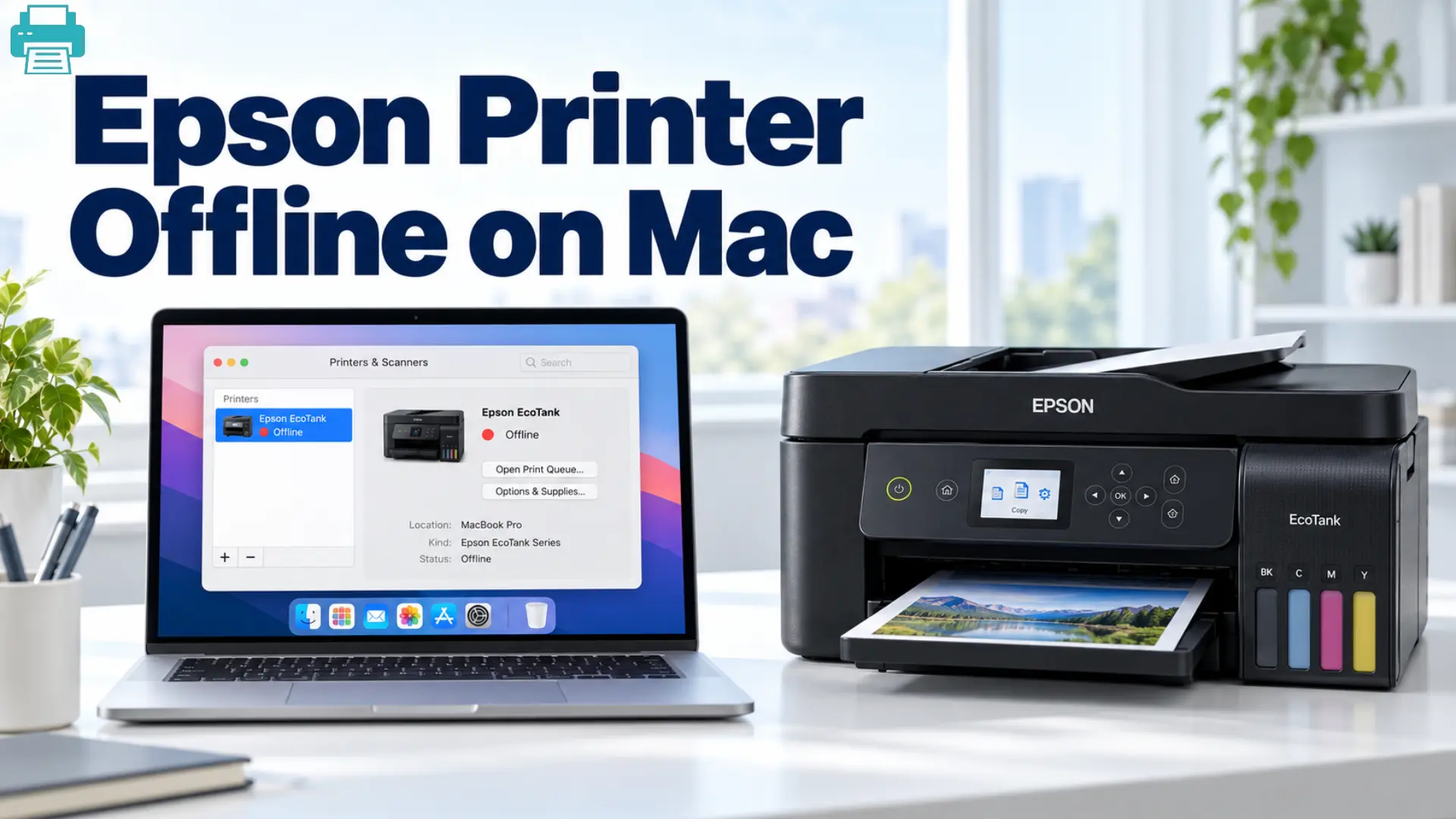
Fixing An Epson Printer That’s Offline On Mac
 Last updated on
Your Epson printer is turned on, but your Mac gives an Offline message when you try to print. The printer can be connected to Wi-Fi, making the problem confusing. In many cases, the printer itself is working fine. The problem can come from temporary network issues, a paused print queue, an old printer entry, or outdated software.
Here’s the good news: You can usually fix an Epson printer offline on Mac without doing any complicated changes. Stay with the simplest checks and move through all the fixes in proper order. After each fix, you can try sending a small test print. Once the Epson printer works, you can stop.
Why Is My Epson Printer Offline on Mac?
An Epson printer may show offline on a Mac for several common reasons:
- The Mac and printer are connected to different Wi-Fi networks.
- The printer has lost its wireless connection.
- A print job is paused or stuck in the queue.
- macOS has saved an old printer connection.
- The printer should be removed from the network but still appears on your Mac.
- The Epson driver is old or no longer communicating correctly with macOS.
- A recent macOS or router change can affect the printer connection.
- The printer or router needs a simple restart.
Before trying any advanced settings, make sure your printer is powered on and does not show a paper jam, low ink warning, or another error. You need to also check that your Mac and Epson printer are using the same Wi-Fi network.
How to Fix an Epson Printer That’s Offline on Mac
Fix 1: Restart and recheck your network
Restarting the Epson printer and re-checking the Wi-Fi connection can clear any temporary communication problem.
- Power off your Epson printer and wait for a few seconds.
- Turn it back on and wait until it gets ready.
- Right-click the Wi-Fi icon on your Mac.
- Confirm that you are connected to the same network as the Epson printer.
- If your router works on 2.4 GHz and 5 GHz networks.
- Try connecting your Mac to the same band used by the printer.
- Do the print test again.
2. Resume the Printer and Clear all the stuck jobs
A paused or stuck print job can make an otherwise working printer appear offline.
- Go to the Apple menu > System Settings > Printers & Scanners.
- Choose your Epson printer from the list.
- Right-click the Printer Queue.
- If the queue shows any paused print jobs, click on Resume.
- Cancel if there is any stuck print jobs, and then try printing again.
3. Delete the Epson Printer and re-add it Again
If macOS is using any old connection, you need to remove and re-add the printer to refresh all settings.
- Go to System Settings > Printers & Scanners.
- Choose your Epson printer and click on Remove Printer.
- Right-click to Add Printer, Scanner, or Fax, or Printer.
- Wait for the Epson printer to appear, then re-select it.
- Click Add and send a test print.
If macOS offers both AirPrint and an Epson driver, choose any option recommended for the printer model. If you are unsure, try to check Epson’s information for your specific model.
4. Reset the Printing System
This is a stronger step because it can remove every printer, print queue, and saved printing settings from your Mac. You can use it only if any earlier fixes do not work.
- Navigate to the Apple menu > System Settings > Printers & Scanners.
- Control-click the empty area of the printer list.
- Select Reset Printing System.
- Confirm the reset when macOS asks.
- Re-add your Epson printer again and start printing.
Remember that this step can remove all the printers from the Mac, not just your Epson printer, so you will have to re- add any other printers again.
5. Update the macOS Driver
An old and updated Epson driver can cause many connection problems, especially after a macOS update.
- Go to Epson’s official page and look for your printer model.
- Download the latest driver or printer software for your version of macOS.
- Now, install the software and follow all the instructions you see on the screen.
- Restart both the Mac and Epson printer.
- Add the Epson printer again if necessary, and print a test page.
If your printer works after any update, the problem can be due to its software or saved connection rather than a major hardware failure.
Final Thoughts
An Epson printer showing offline on Mac can easily be caused by a weak connection, paused print queue, outdated printer entry, or any driver problem that can cause the message. You should do network and restart checks, then move to printer settings and software fixes. In most cases, one of these steps can restore your connection and get your Epson printer printing again.
FAQs
Q1: Why is my Epson Printer Offline on my Mac?
Ans: This is because your printer is on a different Wi-Fi network, paused, stuck in the print queue, or using any old connection saved by macOS. Checking the WiFi network and printer queue should be your priority first.
Q2: How can I get my Epson printer back online on Mac?
Ans:Restart your Epson printer, confirm that your Mac and printer are on the same Wi-Fi network, and check your printer queue. If the printer remains offline, remove the Epson printer and re-add it again.
Q3: Should I reset the printing system on my Mac?
Ans:You need to use the printing system reset only when the other simpler fixes do not work. It removes all the saved printers and printing settings, so you will have to add your printers again.
Q4: Why is my Epson printer connected to Wi-Fi but offline on Mac?
Ans:The Wi-Fi connection can be active when macOS still has an outdated printer connection. Removing the Epson printer and adding it again can create a fresh connection for you.
For Troubleshooting Guide: Printer Prints Article