
How to Fix a Brother Printer Offline on Mac?
 Last updated on
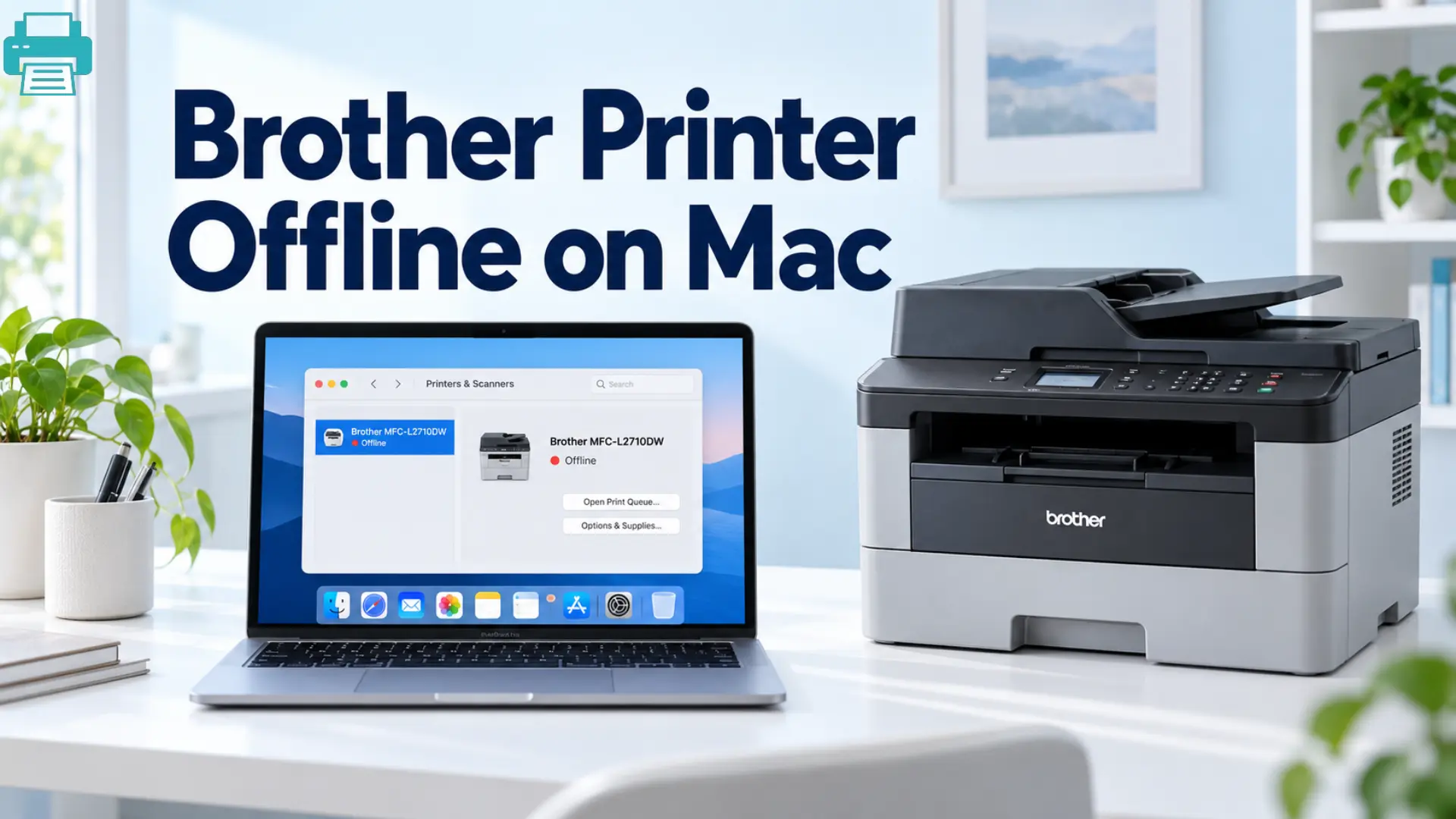
You were ready to print something important from your Mac, but your Brother printer suddenly shows an offline message. The printer is powered on, connected to Wi-Fi, and showing no error, yet macOS refuses to send commands. This mostly happens after a macOS update, a network change, a stuck print job, or an old printer setup.
An offline status usually does not mean your Brother printer is broken. The problem can be a communication issue between the printer and Mac. Start with the easiest checks and do a reset if needed.
Reasons Why Brother Printer Offline on Mac
A Brother printer can show offline on macOS for these common reasons:
- A print job got stuck in the queue and prevents any new documents from printing.
- The printer and Mac are both connected to Wi-Fi networks.
- Your Mac is using an old or corrupted printer configuration.
- The Brother printer driver is outdated or missing.
- The router has changed the printer’s IP address.
- A VPN or network security settings can block local printer communication.
- The printer temporarily lost its connection to the WiFi.
- A recent macOS update has affected the existing printer setup.
Before changing any settings, make sure your Brother printer is powered on, has paper and ink or toner, and shows no warning message. Check that your Mac is connected to the same Wi-Fi network.
Troubleshooting Steps to Fix Brother Printer on Mac
Fix 1: Clear the Print Queue
A stuck print job is easy to fix. Go to System Settings > Printers & Scanners and choose your Brother printer. Right-click on the print queue and search for any print job with a warning message, paused status, or 0% progress.
- Select Resume if the job is paused.
- Clear any job that has been stuck for a long time.
- Wait until the print queue is empty.
- Send the document for printing again.
2. Reboot the Printing System
If the print queue looks normal to you but your Brother printer still shows offline, the saved printer configuration can be damaged. Go to System Settings > Printers & Scanners. Right-click in the printer list and select Reset Printing System.
- Confirm the reset when macOS asks.
- Wait for the printer list to clear.
- Remember that this can remove all the saved printers and their configurations.
- You will need to re-add your Brother printer again.
3. Re-add the Printer with the Latest Driver
Before re-adding the printer again, you need to download the latest Full Driver & Software Packages for your exact Brother model from Brother’s official site.
- Download and install the Brother software and follow all the on-screen instructions.
- Go to System Settings > Printers & Scanners.
- Right-click the + button.
- Choose your Brother printer and re-add it.
- Select the connection options that match your printer.
4. Confirm that both devices are on the same Network
A wireless Brother printer cannot communicate properly with your Mac if they are connected to other networks. Select your Wi-Fi network name on the printer’s control panel or network report sheet.
- Verify the Wi-Fi network shown on your Mac.
- Make sure that both devices are using the same network.
- If your router is on separate 2.4 GHz and 5 GHz networks
- Use the network band that is supported by your printer.
- Avoid you are on the guest networks because they can block device communication.
- Try printing to the Brother printer again after confirming the connection.
5. Reboot the Printer and Mac
If the printer remains offline, you need to restart both devices.
- Turn off the Brother printer and unplug it.
- Restart the Mac.
- Restart your router if needed.
- Wait for your Wi-Fi to return.
- Turn on the printer and Mac and try printing anything.
What if Brother Printer is Connected but Still Offline?
If your Brother printer is connected to Wi-Fi but macOS still shows an offline message, the saved printer connection can be outdated. Try removing the Brother printer from System Settings > Printers & Scanners and re-add it again.
If your problem started after changing the router, Wi-Fi password, or network name, you need to reconnect the printer to the new network before re-adding it back to your Mac.
You also need to check whether your Mac is sending documents to the correct Brother printer. If several Brother printers or duplicate entries appear, remove the ones you no longer use. A VPN can also block local network printing, so you can temporarily disconnect it and test the Brother printer.
When Should you Reset the Printing System?
Resetting the Brother printing system is very useful when the normal troubleshooting does not solve your problem or when the printer configuration is corrupted. However, it should not be your first step because macOS removes all printers and saved printer settings during the reset. You will need to re-add your printers again.
Conclusion
A Brother printer showing offline on Mac can be caused by a stuck queue, network mismatches, an old printer driver, or damaged configuration. You need to start by clearing the print queue and doing some basic network checks before resetting the Brother printing system. If needed, you need to install the latest Brother software and add your printer again.
FAQs
Q1: Why do I see my Brother printer say offline on Mac?
Ans: The Brother printer may have lost its network connection, be connected to a different Wi-Fi network, or have an old printer configuration saved on your Mac. A stuck print job can also cause an offline status.
Q2: How do I get my Brother printer back online on my Mac?
Ans: First, check that your printer and Mac are on the same Wi-Fi network. Then clear any stuck print jobs. If the problem continues, remove and re-add the Brother printer again using the latest Brother software.
Q3: Should I reset the printing system on my Mac?
Ans: Use this option when simpler fixes cannot work, or the printer configuration appears corrupted. Remember that resetting can remove all printers from macOS, so you will need to add them again.
Q4: Why is my Brother printer connected to Wi-Fi but not printing?
Ans:The Mac may be using an old printer entry, the print queue can be stuck, or the printer driver may need updating. Removing and re-adding the Brother printer can refresh the connection.
For Troubleshooting Guide: Printer Prints Article