
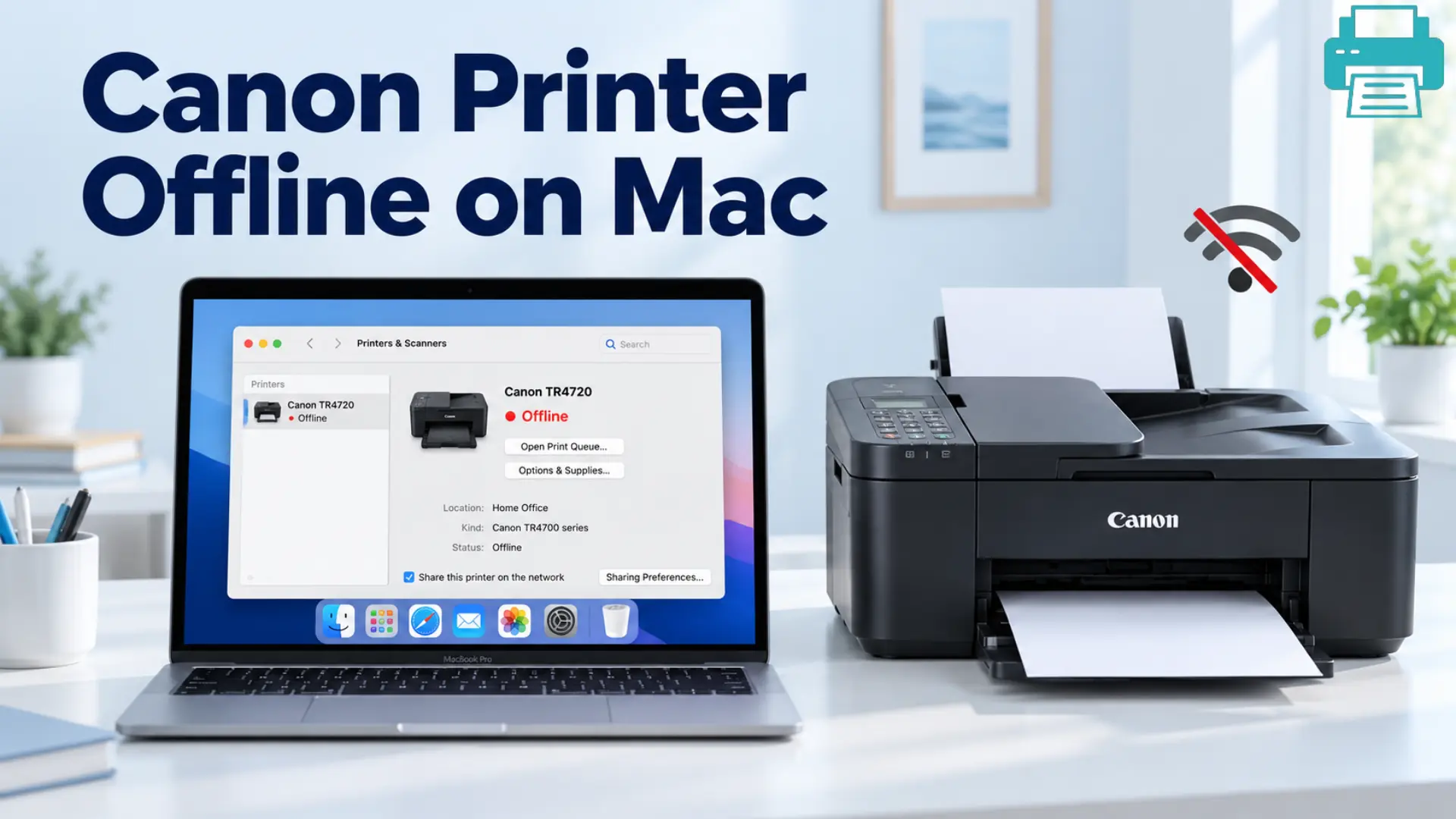
Canon Printer Offline on Mac? Easy Ways to Fix It
 Last updated on
In this blog, you’ll find practical ways to fix Canon printer offline on Mac and get all your stuck print queues moving again.
Basic Checks to do Before Fixing Canon Printer Offline on Mac
Before removing the Canon printer from the system or changing macOS settings, you have to do these checks. These will help you to check whether the Canon printer offline on Mac problem is caused by the printer, connection, or a stuck print job.
1. Make Sure the Canon Printer is Ready to Print
Look at the printer’s display and look for any error message or warning light.
Check for any paper jam, open cover warning, empty ink cartridge message, or any other error.
Verify whether the printer is online or offline on Windows or macOS.
2. Check the Printer’s Internet Connection
- For USB users: Disconnect the USB cable and then reconnect it. Try another USB port if available to check the connection.
- For WiFi users: First, check that your printer and computer are connected to the same network. Check whether the printer, router, and computer are properly connected or not.
3. Restart the Canon Printer
- Power off the Canon printer.
- Wait for at least 10 seconds.
- Turn the printer back on and wait until it is ready.
- Print a test page from your Mac.
If you still see the Canon printer offline after restarting, then you must restart the router to refresh the whole connection.
4. Check the Printer Queue
A failed or stuck printing page can stop other print jobs from processing.
- Go to System Settings, Printer & Scanners, and then select your Canon printer
- Search for the print queue, open it, and cancel any documents that are stuck.
- Do a document print test to check whether the printer queue is cleared or not.
- If the page prints, then the printer is fine; the problem was just caused by the print queue.
Why is My Canon Printer Offline on Mac and How to Fix it?
You must be confused when you see your Canon printer offline on Mac. Don’t worry, we’ve got your back. The problem can be due to a communication error between macOS and the printer. Sometimes, Mac can be connected to the old printer settings even if the network or system is changed.
Here is Why the Canon Printer is Offline on Mac:
- macOS has temporarily stopped sending the print commands.
- The saved printer profile is different from the printer you are using.
- macOS is using the AirPrint connection instead of the Canon software connection.
- Installed the wrong printer driver not suitable for your model.
- Using a damaged printer system.
Try These Fixes for a Canon Printer Offline on Mac:
1. Resume your Canon printer
- Go to System Settings> Printers & Scanners.
- Select the Canon printer.
- Check whether the printing process has paused or not.
2. Reset Your Selected Printer
- Remove the old saved Canon printer.
- Click to add a new printer.
- Add the newly detected Canon printer.
3. Verify the Printer Connection Type
- Search for where and how the Canon printer is listed in macOS.
- Select the correct connection for your printer model.
- Avoid using any old printer entry.
4. Download and Install the Correct Canon software
- Click on the exact printer model.
- Download the correct software or driver matching your macOS version.
- Install the downloaded software and try printing again.
5. Reset the Mac Printing system
- Click on Printers & Scanners.
- Remove all the old printers.
- Reset your printing system if needed.
- Add the new Canon printer and do the test print again.
Final Thoughts,
A Canon printer offline on a Mac does not always mean there is any problem with the printer. The issue can come from a stuck print job, an incorrect printer entry, an unstable network connection, or old Canon software. Start by doing all the above basic checks before removing or resetting anything. If the problem continues, remove the old printer, add it again, or install the correct Canon software for your Mac. All this can help restore the connection and get your print jobs done.
FAQs
Q1: Why is My Canon Printer Offline on Mac?
Ans: Your Canon printer shows offline because of a network connection problem, a stuck print queue, an old printer entry, or incorrect printer software. You have to make sure the Mac and printer are connected correctly before changing any printer settings.
Q2: How do I get my Canon Printer Back Online on Mac?
Ans: To get the Canon printer back online on Mac, check the printer and WiFi connection, clear stuck print jobs, and restart the printer. If the printer still shows offline, remove the saved printer from System Settings > Printers & Scanners and add it again.
Q3: Why is my Canon Printer Connected to WiFi but Offline on Mac?
Ans: The printer can be connected to WiFi but still fail to communicate with your Mac. Check that both devices are on the same network, and that macOS is using the correct printer entry.
Q4: Should I Reinstall My Canon Printer Software on Mac?
Ans: If basic connection and queue checks do not resolve the issue, installing the correct Canon software or driver for your exact printer model and macOS version may help restore communication.