
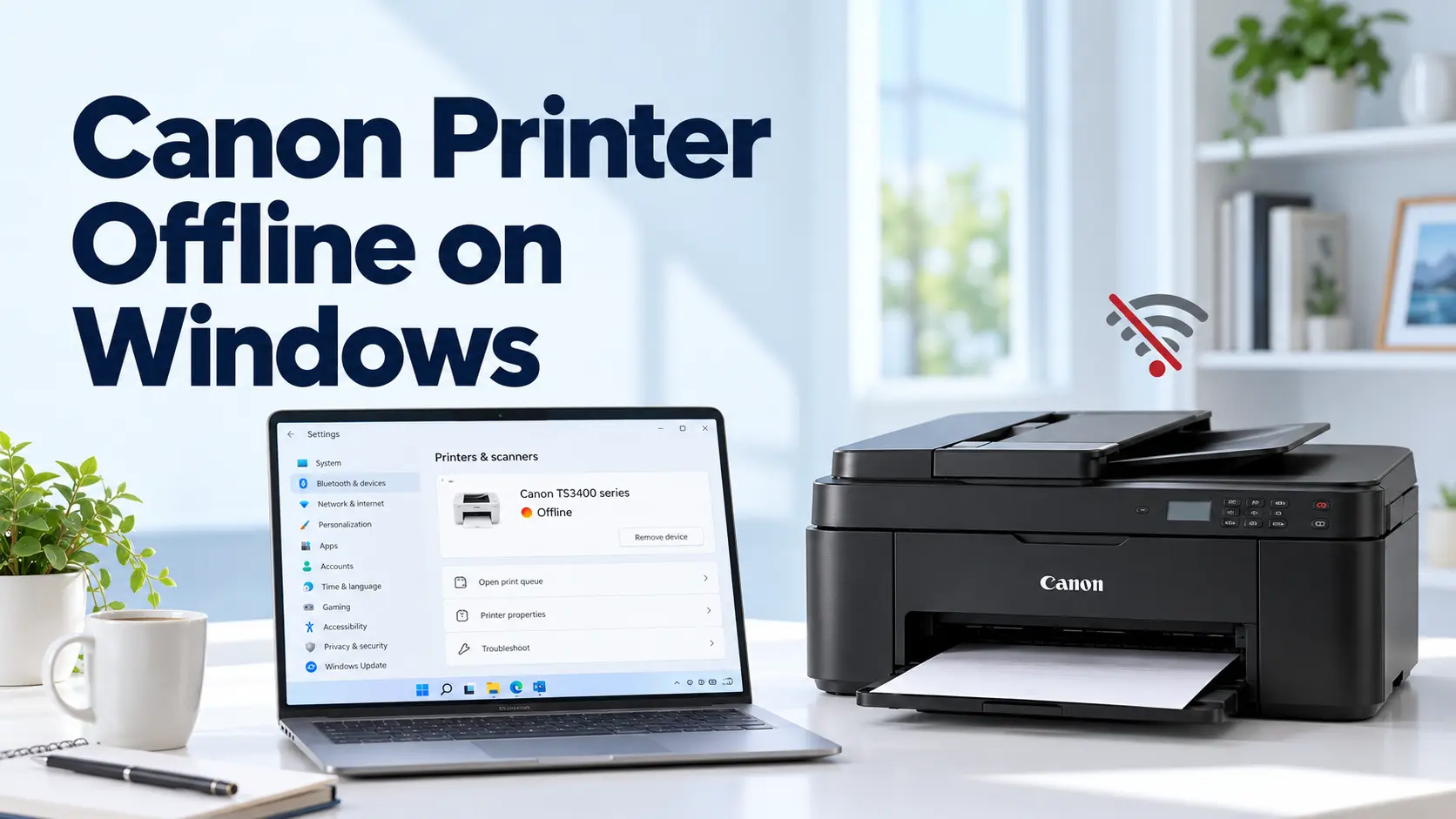
How to fix Canon Printer Offline on Windows in Minutes?
 Last updated on
If your Canon printer goes offline when you just send a print job, you are not alone. Most of the time, the problem is not too serious, and you can resolve the Canon printer offline issue yourself. You just have to know the right troubleshooting steps and make some adjustments to get your Canon printer working again.
In this blog, you will know, we will walk through why Canon printers go offline and provide easy step-by-step guides to fix this problem for Windows.
Reasons Why Your Canon Printer Won’t Print on Windows
There are many reasons why your Canon printer won’t print. Some are easy to fix, and some may require a lot of troubleshooting from you.
Most common reasons why your Canon printer won’t print are:
- The Canon printer is in Offline mode.
- There’s a paper jam in your printer.
- Ink cartridges are empty or not placed properly.
- There are some driver issues with your printer.
- Weak or unstable WiFi connection problems.
- Your printer’s print queue is stuck.
- Old printer firmware is being used by the printer.
Once you identify the cause, fixing the Canon printer won’t print or offline error becomes much easier.
Quick Fixes for Canon Printer Offline Issues
Let’s start with the basic fixes that a Canon printer offline issue needs. These fixes often work on every system; it doesn’t matter if you are using Windows or a MacBook.
1. Check All the Network Connections
- The USB cable should be properly connected to the printer.
- If you are using a Wi-Fi network, make sure the printer is connected to a stable network.
- Restart the router if the internet speed drops.
2. Restart Both Devices When Needed
- Turn off your Canon printer and then your PC or computer.
- Wait for at least 1-2 minutes before powering them on.
- Usually, this is all that it takes to get your printer back online.
3. Set Your Current Canon Printer as the Default Printer
- Go to the System Settings or Control Panel.
- Search for Printers & Scanners.
- Find your Canon printer and select it as the default printer.
4. Update or Reinstall the Printer Drivers If Available
- Go to the official Canon Site.
- Download the latest drivers for your printer model.
- Remove the old drivers and install all the available newest drivers.
5. Clear the stuck Print Queue
- Navigate to the Printers & Scanners settings.
- Right-click on your Canon printer and click to see what’s printing.
- Cancel all print jobs, pending print jobs, and/or print jobs that are stuck.
Why is My Canon Printer Offline on Windows 11 and How to Fix it?
Windows 11 is different from other older versions of Windows, as it handles your Canon printer differently. It features device management that can keep the incorrect printer status open sometimes even after you change the software or system.
Common Reasons behind a Canon Printer being offline on Windows 11:
- Windows has selected the wrong device because of multiple printer entries.
- The Canon printer was not identified by Windows.
- There is a fault in the printer that is stopping the print job.
- You are using outdated printer drivers.
- Windows may have changed printer permissions and settings.
Five Steps to Fix a Canon printer Won’t Print on Windows 11:
Step 1: Open and confirm the Canon printer settings
- Search for Settings > Bluetooth & Devices > Printers & Scanners.
- Right-click on your Canon printer from the on-screen list.
- Check whether Windows is showing an unavailable status or an error.
Step 2: Run Windows printer troubleshooting
- Go to Canon printer settings.
- Select the appropriate troubleshooting option.
- Follow Windows’ recommended solutions to identify the issue.
Step 3: Delete all the duplicate Canon printer entries
- Search for any multiple entries with the same or similar Canon model name.
- Remove all of the old and unused entries.
- Only keep the latest printer installation.
Step 4: Update the Canon printer drivers
- Visit the official Canon website.
- Search for the latest printer drivers for the exact printer model.
- Download and install the latest printer driver for Windows 11.
Step 5: Remove and Re-add the Canon printer
- Go to Settings > Bluetooth & Devices > Printers & Scanners.
- Click on Remove Device or the (-) icon.
- Select your Canon printer when Windows 11 detects it.
- Re-add the printer using the (+) button.
Final Thoughts,
Getting your Canon printer back online on Windows usually does not require much complicated troubleshooting. You just have to start with the simple checks, such as the printer connection, power, print queue, and default printer settings. If the issue continues, updating the driver or removing and re-adding your Canon printer can help you to restore communication between Windows and your Canon printer. For Windows 11 users, verifying duplicate printer entries and device settings can also prevent the same offline problem from returning.
FAQs
Q1: Why is my Canon Printer Offline on Windows?
Ans: Your Canon printer is showing offline on Windows because of a weak connection, outdated driver, stuck print queue, or incorrect printer settings. Windows selecting the wrong printer can also be the reason for the error.
Q2: How can I get my Canon Printer Back Online?
Ans: You can get your Canon printer back online by checking the WiFi or USB connection, restarting the printer and computer. You can also fix the issue by clearing pending print jobs and selecting your Canon printer as the default printer.
Q3: Why is My Canon Printer Offline on Windows 11?
Ans: Windows 11 may show your Canon printer as offline due to outdated printer drivers, duplicate printer entries, network connection problems, or incorrect printer settings.
Q4: How do I fix a Canon Printer that Won’t Print on Windows?
Ans: You can fix a Canon printer that won’t print on Windows by checking the printer connection, clearing the print queue, and updating the driver. Try checking for paper or ink issues, and removing and re-adding your Canon printer if necessary.
For Troubleshooting Guide: Printer Prints Article