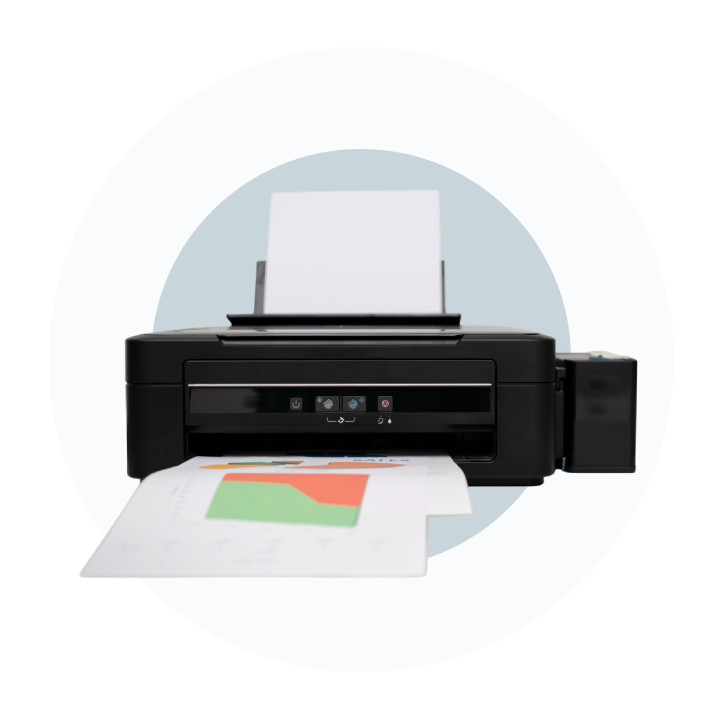
Introduction
HP stands for Hewlett-Packard, a well-known technology company based in Palo Alto, California. The company offers a wide range of hardware, software, and printing products for home users, small businesses, schools, government organizations, and large companies.
HP began with Bill Hewlett and David Packard, who founded the company in 1939. One of its first major projects was providing electronic testing equipment for Walt Disney’s animated film Fantasia. Since then, HP has grown into a global technology brand known for its computers, printers, and related services.

Why HP Printers Are Still So Popular?
HP has remained one of the best-known printer brands because it offers models for almost every type of user. You can find small printers for occasional home printing, all-in-one models for families and home offices, and powerful LaserJet printers for businesses.
HP also supports printing across Windows, macOS, Android, and iOS, making it easier to print from different devices. Its HP app can also help with setup, scanning, Wi-Fi connections, ink levels, and printer updates.

HP Printer Series Explained
Choosing an HP printer becomes easier when you first understand what each series is designed for.
HP DeskJet
DeskJet printers are small, affordable inkjet printers made for basic home use. They are suitable for printing schoolwork, forms, tickets, and other documents from time to time. Most models also offer scanning and copying. However, they are generally slower and better suited to lighter workloads.
Best for: Students, renters, and people who print only occasionally.
HP ENVY & ENVY Inspire
The ENVY range offers more features than basic DeskJet models. Many models provide automatic two-sided printing and better photo quality. ENVY Inspire printers are especially useful if you print both documents and photos. Some models also include a separate photo paper tray, making it easier to switch between regular documents and photos.
Best for:Families, home users, and people who print photos regularly.
HP OfficeJet & OfficeJet Pro
OfficeJet printers are designed for people who print more frequently. They are useful for home offices and small teams because they offer faster printing and features such as an automatic document feeder (ADF). OfficeJet Pro models are designed for heavier workloads and can offer higher print speeds and better page yields than basic home inkjet printers.
Best for: Home offices, small teams, and users printing hundreds of pages each month.
HP LaserJet
LaserJet printers use toner instead of liquid ink, making them a practical choice for frequent document printing. Toner also does not dry out like ink can, which is useful if the printer is not used every day. LaserJet models are particularly good at producing sharp text quickly. HP offers compact models for home offices as well as larger printers designed for businesses.
Best for:Offices, schools, and users who print many text-heavy documents.
HP Smart Tank
HP Smart Tank printers use refillable ink tanks instead of traditional cartridges. You fill the tanks with bottled ink, which can reduce the cost of printing over time. They are a good option for users who print frequently but still want the flexibility of an inkjet printer for both documents and photos. The main downside is that Smart Tank models generally focus more on low running costs than high printing speed.
Best for:Families, small businesses, and high-volume home users.
Understanding HP Ink and Subscriptions
HP offers several ink-related services, but two names you may come across are HP Instant Ink and HP+.
HP Instant Ink
HP Instant Ink is a subscription service that sends replacement ink when your printer needs it. Instead of paying based on the amount of ink in a cartridge, your plan is based mainly on the number of pages you print. This can be useful for people who print regularly, especially in colour. However, occasional users may find buying cartridges when needed more suitable.
Before signing up, check the plan’s monthly page limit and the cost of additional pages.
HP+
HP+ is an optional service available on certain HP printer models. It can include benefits such as an extended warranty and other connected printing features. However, activating HP+ comes with conditions, including the use of genuine HP cartridges.
Make sure you understand these requirements before activating it.
More about the HP App
The HP app is designed to make printer setup and everyday management easier.
Depending on your printer model, you can use it to:
- Set up the printer and connect it to Wi-Fi.
- Check ink or toner levels.
- Print and scan documents.
- Update printer software and firmware.
- Troubleshoot common connection problems.
- Print from your phone or computer.
For many users, the app makes printer setup easier than installing drivers manually.
How Can You Choose the Right HP Printer?
Before buying an HP printer, think about how you will actually use it.
How much do you print usually?
For occasional printing, a DeskJet or ENVY may be enough. For regular home-office use, consider an OfficeJet or Smart Tank. For heavier document printing, a LaserJet may be more suitable.
Do you want to print photos?
If photo printing is important, look at ENVY Inspire or Smart Tank models.
Do you need it for scanning and copying?
An all-in-one printer is useful if you regularly scan or copy documents. If you scan several pages at once, look for a model with an ADF.
What matters more for you: purchase price or running cost?
A cheaper printer does not always mean cheaper printing. Look at the cost of ink or toner and how many pages you expect to print each month.
HP Printer Connectivity
Most modern HP printers support wireless printing, and many also offer USB connections. Some business models include Ethernet for a more stable wired network connection. You can also print from smartphones and tablets using services such as Apple AirPrint or the HP app.
Some models support Wi-Fi Direct, which allows a device to connect directly to the printer without using your regular home Wi-Fi network.


HP Printer Security
Printer security becomes more important when several people use the same printer or when sensitive documents are involved. Some HP business printers include security features designed to protect the printer from malware and unauthorized access. Certain models also offer features that hold a document until you are ready to collect it.
For home users, keeping the printer’s software and firmware updated is one of the simplest ways to maintain a secure and reliable connection.
Tips to Get More From Your HP Printer
A few simple habits can prevent common printer problems:
- Keep the firmware updated to improve performance and fix known issues.
- Use suitable paper for your printer to avoid paper jams and poor print quality.
- Print occasionally if you use an inkjet printer to reduce the chance of dried or clogged ink.
- Check ink and toner levels before starting large print jobs.
- Keep the printer connected to a stable network if you use wireless printing.
What's Next?
Choosing the right HP printer is only the beginning. After buying one, you’ll need to set it up, connect it to Wi-Fi, install the correct drivers, and configure the HP app if required.
If you already own an HP printer and are dealing with problems such as offline errors, Wi-Fi issues, driver problems, or printing failures, troubleshooting the specific error is usually the fastest way to get it working again.
Knowledge Base
Lorem ipsum dolor sit amet, consectetur adipiscing elit. Ut elit tellus, luctus nec ullamcorper mattis, pulvinar dapibus leo.
- All Posts
- Brother
- Canon
- Epson
- Hp
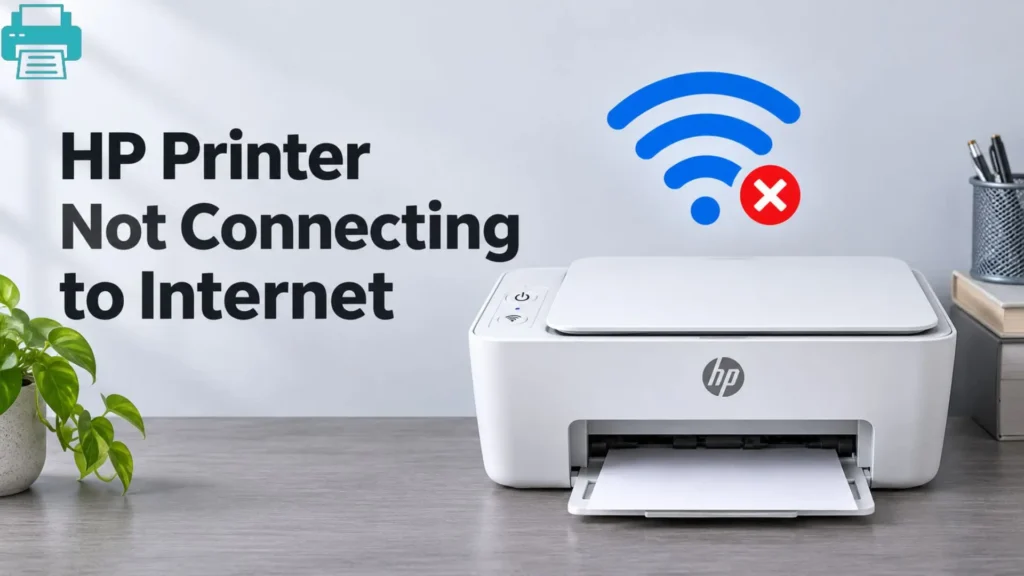
Is your HP printer not connecting to internet, even though your phone or computer is working perfectly on the internet?...
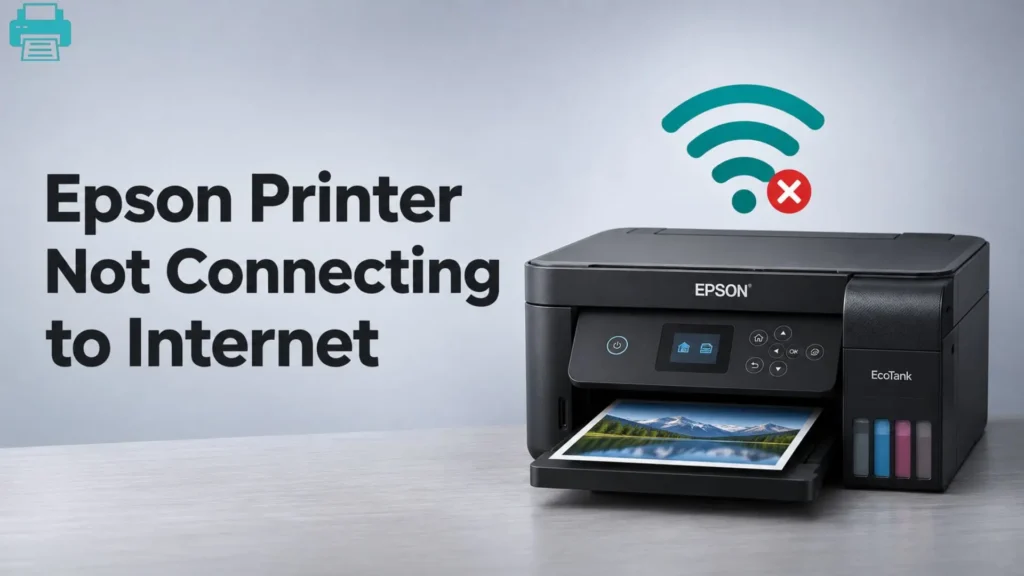
Your Epson printer may show that it is connected to Wi-Fi, yet internet-based features still refuse to work. Cloud printing...
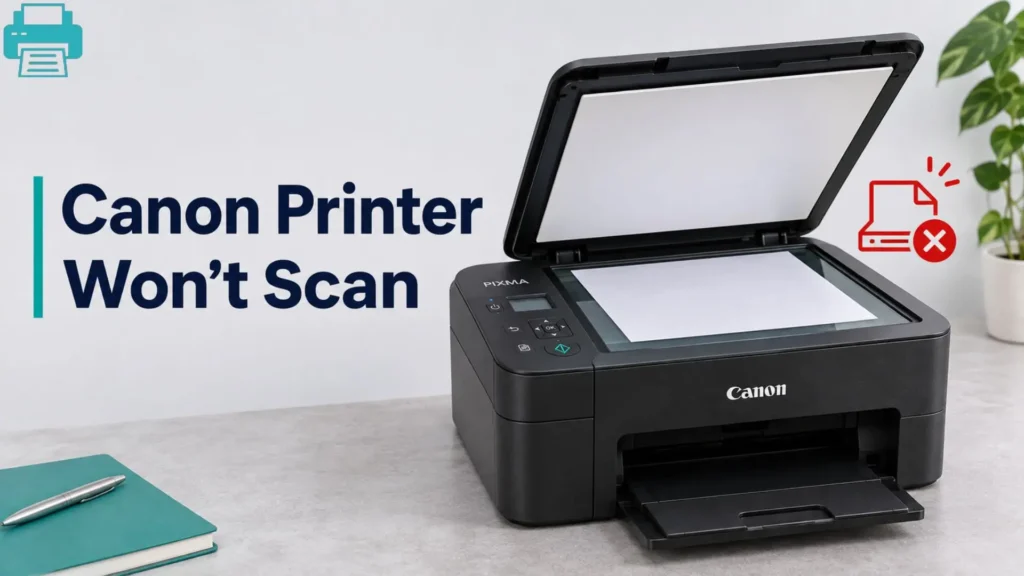
Is your Canon printer printing documents but refusing to scan them? This problem can occur when the scanner driver is...
A Canon printer may show it is powered on but still fail to connect to the internet or Canon’s online...
Your HP printer is switched on, but your computer cannot find it. Sometimes, the printer appears connected but refuses to...
A Brother printer can be switched on and ready to print, yet your computer may still fail to detect it....