
Canon Printer Won’t Connect to WiFi? Fixes That Work
 Last updated on
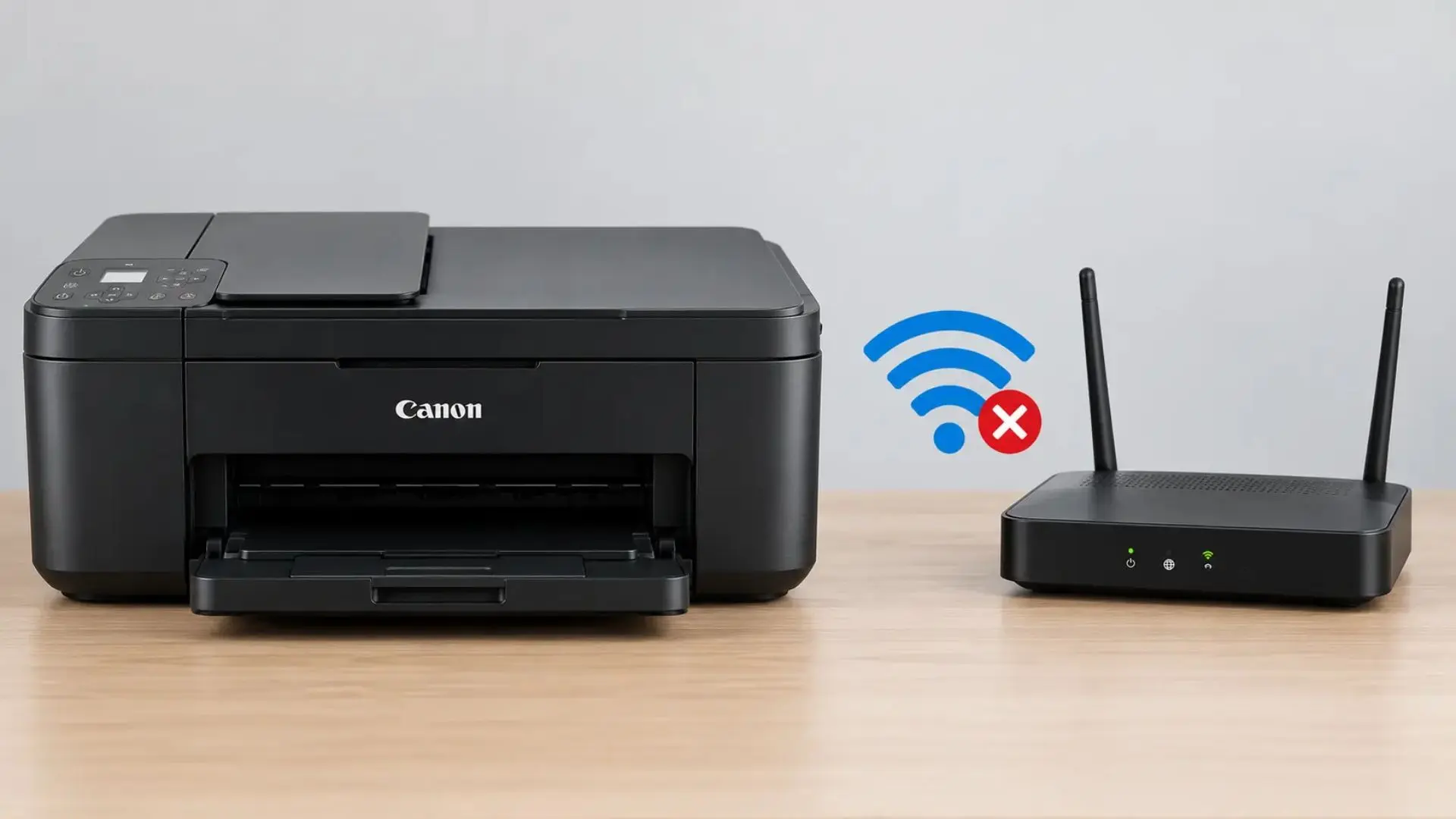
Is your Canon printer refusing to connect to WiFi when you need to print something important? Your printer is powered on, your internet is working perfectly, yet the wireless connection fails. Sometimes, your Canon printer cannot find the WiFi network. In some cases, it connects, but your computer cannot communicate with it.
If your Canon printer is not connecting to WiFi, the reason can be wrong password entry, a weak signal, or an old wireless connection saved on your printer. This blog explains the common causes. It also shows you how to fix a Canon printer that won’t connect to WiFi using troubleshooting steps you can try at home.
Why Won’t My Canon Printer Connect to WiFi?
A Canon printer fails to connect to WiFi for many reasons. The right fix will be the one that works during the setup. If your network name does not pop up, check the router band and signal. If your printer even rejects the password, check the WiFi credentials again.
- Incorrect WiFi credentials, such as the network name (SSID) or password.
- Weak wireless signal or blocking from walls and nearby devices.
- Router band or security setting that your printer cannot support.
- Canon printer and computer connected to different networks using guest networks.
- Temporary printer or router glitches.
- A saved wireless network that no longer matches the current network.
- VPN or firewall settings interfering with the setup.
Before You Fix A Canon Printer That Won’t Connect to WiFi
Don’t change any network settings or reinstall drivers until the printer can detect your WiFi network or whether other devices can connect to it. These quick checks will help you find out the problem and prevent random changes.
- Check the printer’s screen to find any errors, setup prompts, or warning messages.
- Confirm that your router is working and other devices are connected to it.
- Make sure your Canon printer is placed closer to the router.
- Double-check that you have entered the correct and current WiFi network credentials.
- See whether your printer is connected to another router or an old network.
- Ensure that the WiFi band and security settings are compatible with your Canon model.
Once these basic checks are done, follow the fixes below that match your printer’s problem. You have to try every step until one works.
Let’s perform them one by one to get your Canon printer back online.
Verified Quick Fixes for Connecting Canon Printer to WiFi
Fix 1: Check Your Canon Printer’s WiFi Name and Password
If your Canon printer cannot join the WiFi network, first review the network name and password. A single typo can block the connection, especially after a router or password change.
- Click on your current WiFi network from the printer’s wireless setup menu.
- Erase and re-enter the correct WiFi password.
- Review the uppercase letters, numbers, and special characters in the WiFi password.
- If you have recently changed the password, update it in the printer’s saved wireless settings.
- If your network name is still missing, check whether your printer supports the router band and settings.
Fix 2: Improve the WiFi Signal at Your Canon Printer
A weak or unstable signal can stop the printer setup or prevent your printer from staying connected. This is more likely when the printer is far from the router or separated by thick walls and other obstacles.
- Bring the Canon printer closer to the router temporarily and try again.
- Keep your printer away from big walls and metal cabinets.
- Avoid putting the router inside a cabinet or behind any big object.
- If the connection only works when the printer is nearby, improve the connection by using a compatible WiFi extender.
Fix 3: Check Whether Your Canon Printer Supports Your Router’s WiFi Band
Older Canon printer models support 2.4 GHz WiFi, but cannot connect to the 5GHz network. Other models support both bands. Check your printer before changing any router settings, instead of assuming that every Canon printer can connect to a 2.4 GHz network.
- Read your printer’s manual to know about the supported WiFi bands.
- If your printer model only works with a 2.4 GHz Wi-Fi network, select the same network during the setup.
- If the router combines both bands under one network name, follow the printer model setup instructions.
- Verify whether you are connecting to a guest network that can stop connections between devices.
Fix 4: Restart Your Canon Printer and Router
A temporary network issue can stop your printer from completing the setup. Restarting the printer and router will give the connection a fresh start and clear minor glitches. Restart your computer too if the printer is connected to WiFi but refuses to print.
Step 1: Restart the Canon printer
- Power off the printer using the power button.
- Wait for at least 30 seconds until the printer completely shuts down.
- Disconnect the power cable if your printer model allows.
- Reconnect the cable, power on the printer, and wait for it to get ready.
Step 2: Restart the router
- Unplug the router’s cables from the wall outlet.
- Wait for about 30 seconds.
- Reconnect the cable back in and wait for the network to return.
Step 3: Restart your Computer
- On Windows, select the Start menu, then the power icon, and click on Restart.
- On a Mac, search for the Apple menu and click on Restart.
- After restarting, check whether the printer is visible and do a test print.
Fix 5: Update the Current Printer Drivers if Your Computer Cannot Find It
If your Canon printer has connected to WiFi but still does not appear on your computer, the problem may be linked to printer setup or drivers. Installing the right printer software can help to resolve these issues easily.
The following steps will help you to update printer drivers:
- Visit usa.canon.com/.
- Search for the correct printer model name in the search bar.
- Select your operating system and its version.
- Open the available drivers or software section.
- Download the recommended driver or setup package for your model.
- Click on the download file and follow the installation instructions
- Complete the wireless setup if the installer asks you to connect the printer to the network.
- Do a test print to confirm whether the computer is connected to the printer or not.
Fix 6: Check VPN and Firewall Settings
If any VPN or firewall is running in the background on the device, it may stop your Canon printer from connecting to WiFi. These settings are one of the most common reasons a printer fails to connect to WiFi. Verify whether both the printer and computer are connected or not.
- Disable the VPN temporarily.
- On Windows, open Windows Security and check the Firewall and Network protection.
- Allow the correct printer through the firewall when needed.
- Follow all the instructions from your software or network administrator.
- Restore the VPN and security settings after testing.
Final Thoughts,
If your Canon printer won’t connect to WiFi, start with the WiFi network name, password, signal strength, and band. If the printer connects to the router but not to the computer, review the printer setup, driver, and network settings. If the printer connection still fails, use the error message and model manual to find the next step instead of changing random settings.
FAQs
Q1: Why Won’t My Canon Printer Find my Wi-Fi Network?
Ans: Your printer may not support the router’s Wi-Fi band or security settings, or the signal may be too weak. Check the printer’s supported network specifications and move it closer to the router before trying setup again.
Q2: Why Won’t My Canon Printer Connect after I change my Wi-Fi password?
Ans: The printer may still have the old password saved. Open its wireless setup menu, select your current network, and enter the new password.
Q3: My Canon Printer is Connected to Wi-Fi, but My Computer Cannot find it. What should I do?
Ans: Check that both devices can communicate over the same local network. Then verify the printer selection, reinstall the appropriate Canon software if necessary, and check whether VPN or firewall settings are blocking printer discovery.
Q4: Can I Connect My Canon printer to Wi-Fi Without a Computer?
Ans: Many Canon models support wireless setup directly through the printer’s screen or buttons, while some support setup through a phone app. The available method depends on your model. Check its manual for the correct procedure.
For Troubleshooting Guide: Printer Prints Article